
Local-first AI companion
Your AI buddy.Right on your desktop.
Talk, focus, work, play and keep an eye on your PC — with a companion designed to stay close, even offline.
The island
Always nearby.
Cosmo lives quietly at the top of your screen, ready when you need it.

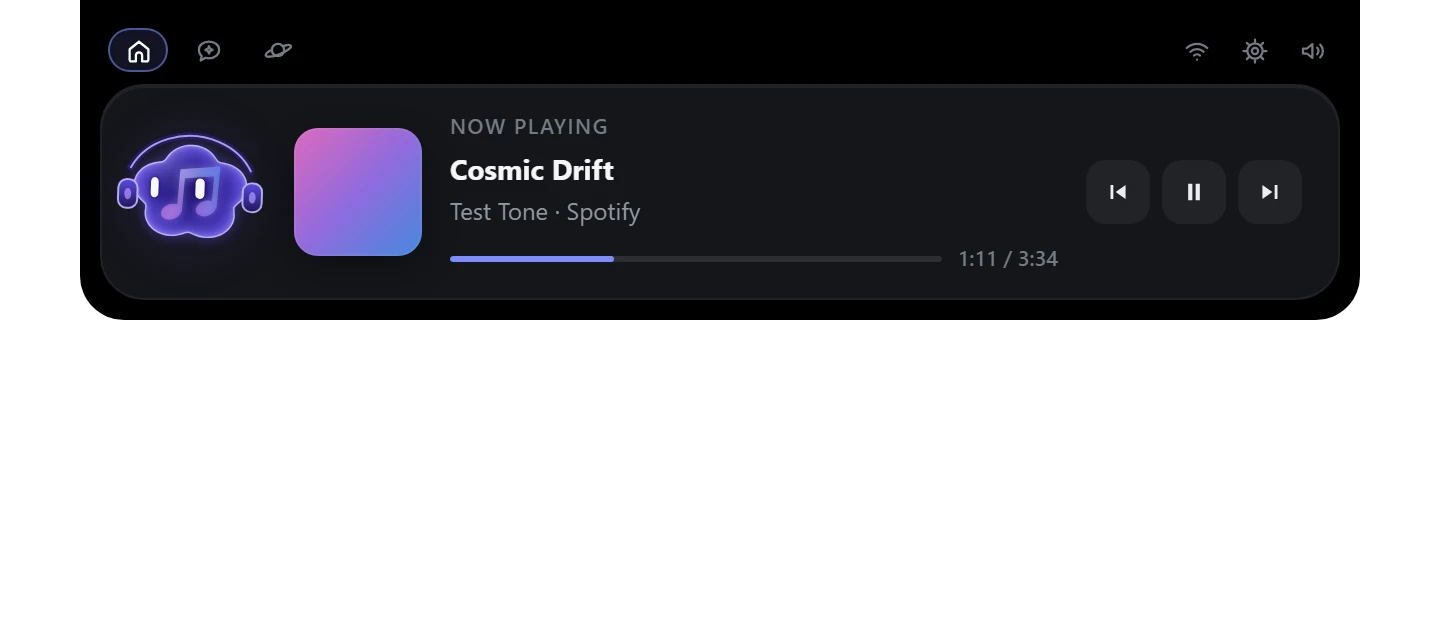
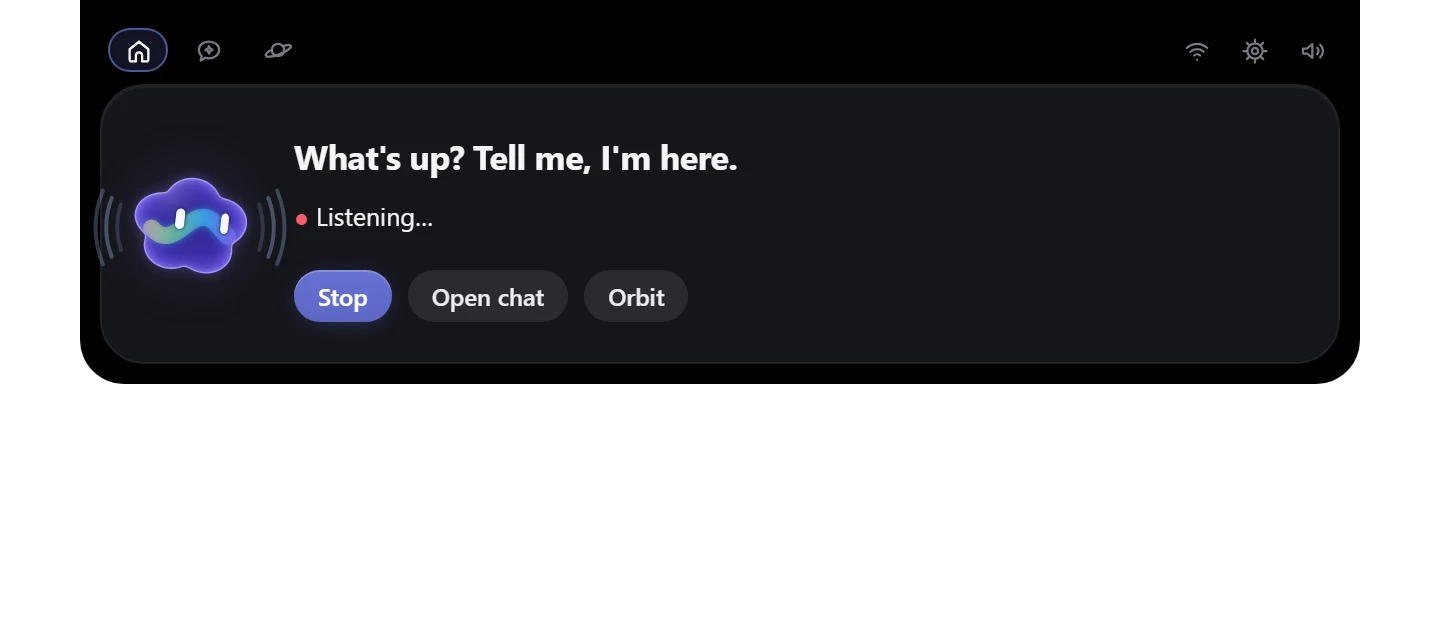
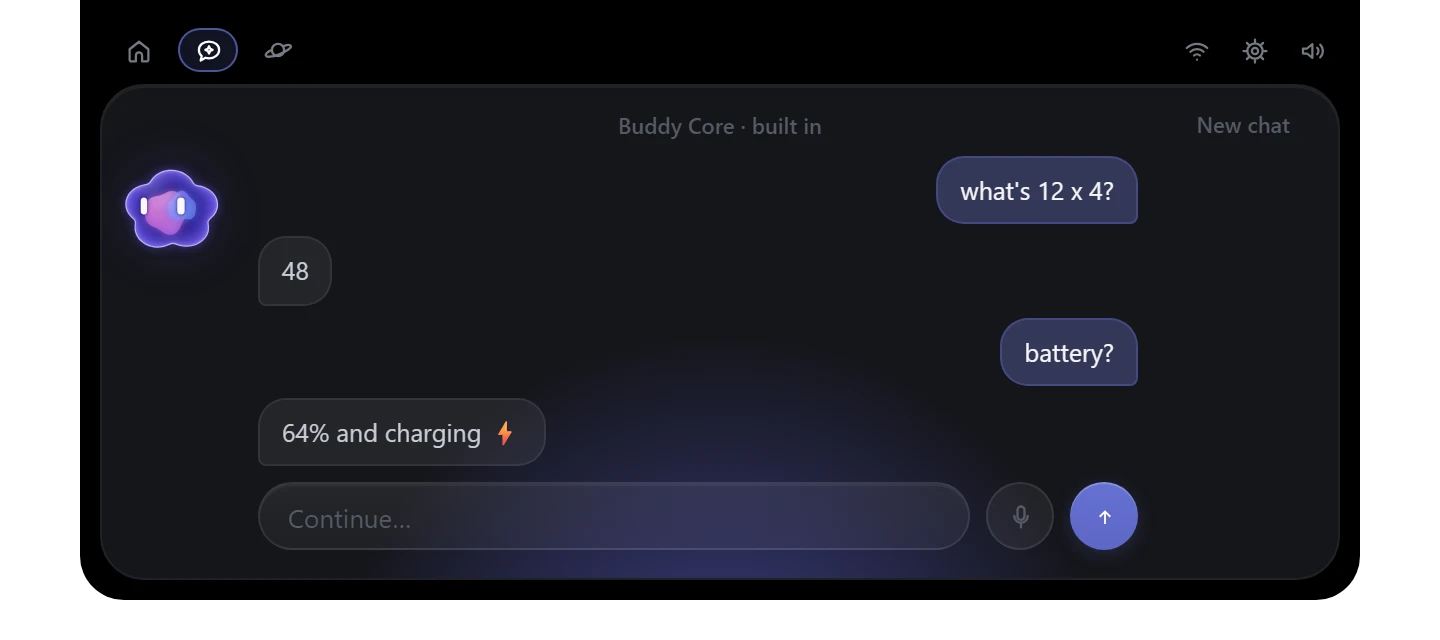
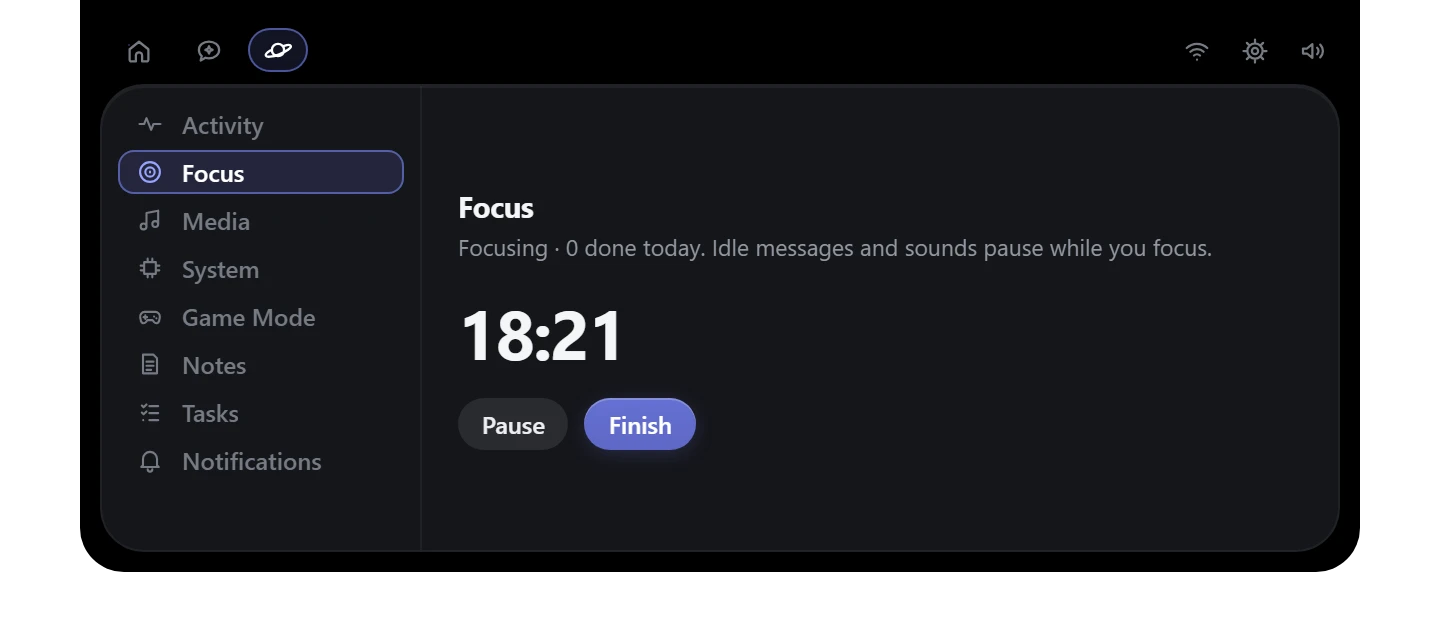
Compact. A slim pill that shows what matters — and nothing else.
Real Cosmo screens. Song names are examples.
Talk to Cosmo
Just say,
“Hey Cosmo.”
Talk naturally. No keyboard required.
Listening…
I feel tired.
Long day? Want to take a short break or put on some music?
The wake word is off until you turn it on. Speech is recognised on your PC; no audio is uploaded or saved.
Local AI
Your AI.
On your PC.
Buddy Core answers the everyday things instantly. Add a Local AI for real conversations — Cosmo picks the one that fits your machine.
Hardware-aware
Suggestions follow your memory and graphics card.
Offline after install
Once downloaded, Local AI works with the internet off.
No API key
Local AI needs no account. Cloud AI stays optional.
Cloud AI — only when you choose it, with your own key
Personality
It feels what's going on.
Idle
Work
It knows when you're working.
Cosmo follows supported coding tools, your focus sessions and tasks — and reacts without getting in the way.
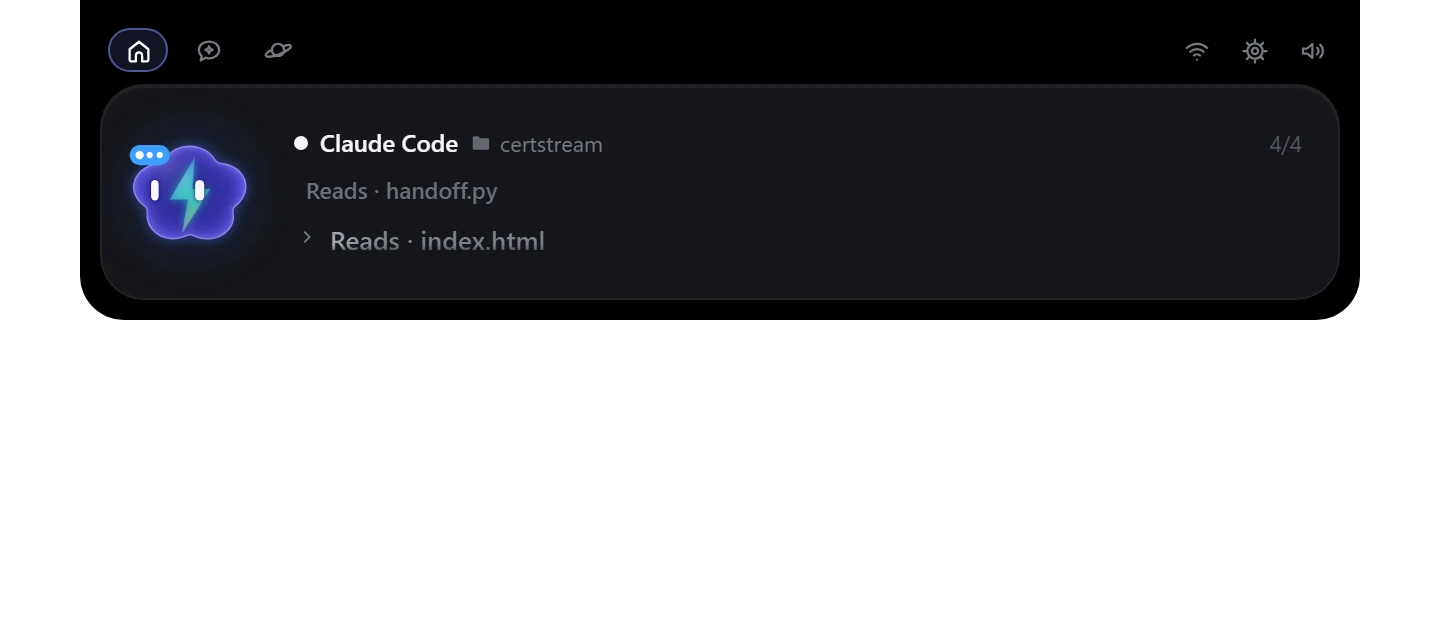
Coding activity
Claude Code and Codex sessions, step by step.
Permission requests
Surfaced at once — you decide, with a click.
Focus
Cosmo goes quiet while you focus.
Tasks
What's left today, one glance away.
Notes
Quick notes that stay on your PC.
Never pushy
No nudges during games, videos or focus.
Media
Your music has a buddy too.
Headphones on when music plays. Play, pause and skip from the island.
Titles come from Windows' own media controls. One switch turns it all off.
Game Mode
Play without interruptions.
Cosmo notices a game, keeps quiet, and can hide over fullscreen games so it never takes a click.
Cosmo only sees which app is in front — it never reads game memory.
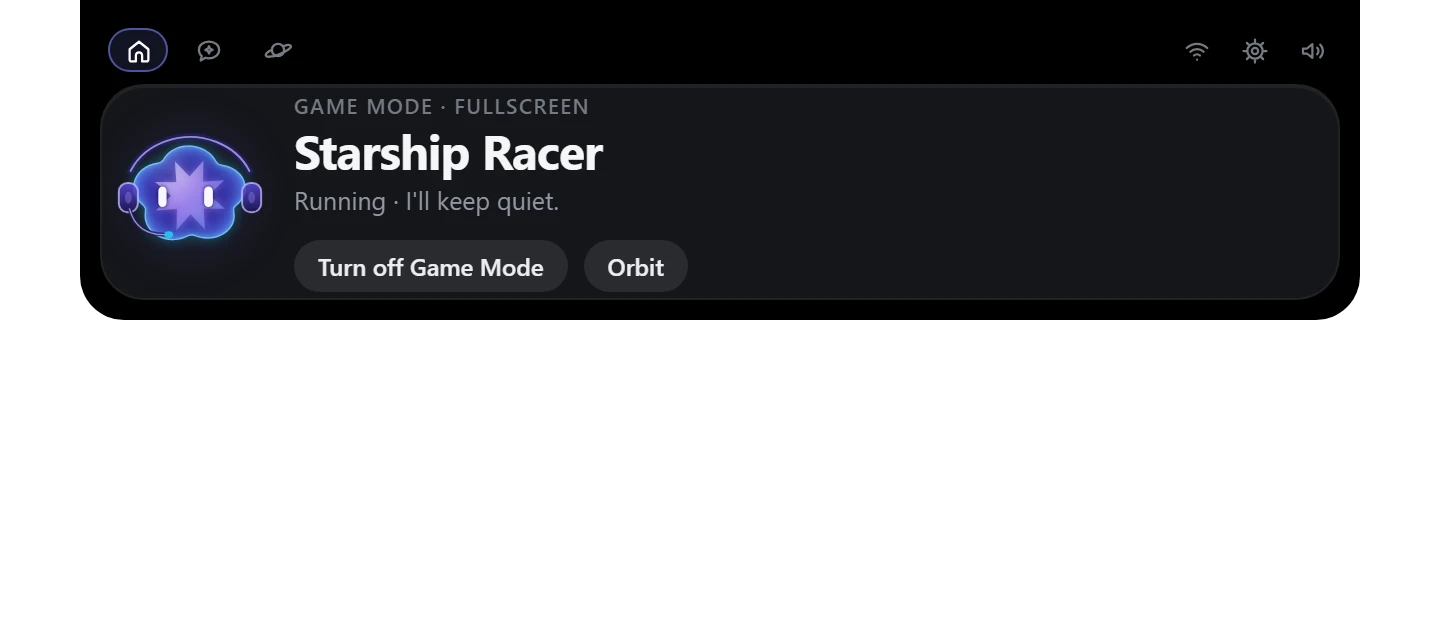
Example values.
Orbit
Everything close by.
One tap opens Orbit — ordered by what's useful right now.
System
Know what your PC is doing.
Network speed and usage, CPU, GPU and memory — read from your PC's own counters.
Cosmo notices the little things. Example values.
Privacy
Private by design.
Local by default.
- No telemetryNo analytics, tracking or ads.
- Local AI stays on this PCAnd works offline once installed.
- Your voice, processed locallyOffline speech recognition; audio is never uploaded or saved.
- Cloud only when you set it upWith your own key; it receives only what you send in Chat.
- Permissions you controlEvery kind of awareness has its own switch.
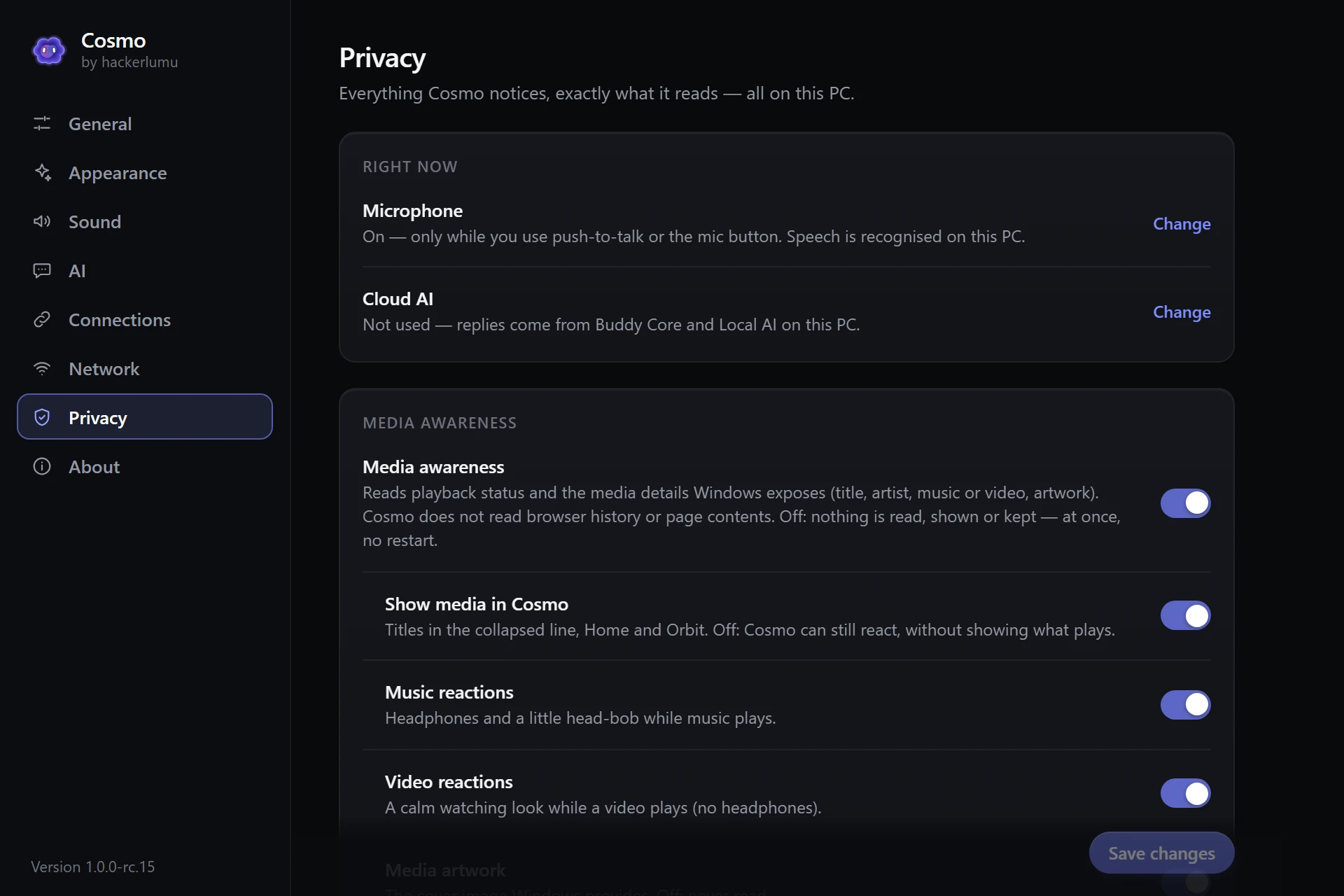
The real Privacy page in Cosmo's Settings.
Performance
Built for more than gaming PCs.
Cosmo adapts its effects and its AI suggestions to your hardware — and to your battery.
Automatic chooses for you. Lighter PCs get lighter AI suggestions; stronger PCs can run the larger ones.
Platforms
Windows first.
Windows 10 isn't tested yet. macOS and Linux will appear here once they're built and tested on each system.
FAQ
Questions, answered.
Does Cosmo work offline?
Yes. Buddy Core, media and system awareness, focus, notes, tasks, push-to-talk speech recognition and any Local AI you've installed all work with the internet off. Downloads, cloud AI and live security news need a connection.
Do I need an API key?
No. Buddy Core is built in and Local AI runs on your PC. A key is only needed if you choose to connect a cloud AI provider. Keys are kept in Windows Credential Manager.
Does Cosmo upload my microphone audio?
No. Speech recognition runs on your PC and audio isn't saved. The microphone opens only when you use push-to-talk or the mic, or when you've turned on “Hey Cosmo”. A cloud AI provider, if you use one, receives only the text you send in Chat.
Which Windows versions are supported?
Windows 11, 64-bit, is tested. Windows 10 (64-bit) should work but hasn't been tested yet.
How much memory does Cosmo need?
Cosmo itself is light. Local AI needs more free memory as models get larger — roughly 1 GB for Mini up to about 5 GB for Ultra — and Cosmo only suggests models that fit your PC. 8 GB or more is recommended.
Can I remove Local AI models?
Yes — in Settings › AI › Manage Local AI. Settings › About › Storage shows what Cosmo keeps on disk.
Does Cosmo work while gaming?
Yes. Game Mode notices a game, keeps Cosmo quiet and can hide it over fullscreen games so it never takes a click. It doesn't read game memory.
Can I turn off system awareness?
Yes. Media, network, active-app, notification and game awareness each have a switch in Settings › Privacy, and turning one off takes effect immediately.
Does Cosmo collect telemetry?
No. There's no analytics, tracking or usage reporting. The only automatic connection is a once-a-day update check, which you can turn off.
Are macOS and Linux available?
Not yet. Both are planned and will be offered only after real testing on each system.
More help: Getting started · message @hackerlumu on Instagram
Ready to meet Cosmo?
Local-first. Free during Early Access.
Windows 11 · 64-bit
Verify your download (SHA-256)
In PowerShell, in the folder you saved it to:
Get-FileHash .\Cosmo-Setup.exe -Algorithm SHA256Cosmo isn't code-signed yet, so Windows may say “Windows protected your PC”. Check the hash, then choose More info → Run anyway.